Turing Printer Protocol
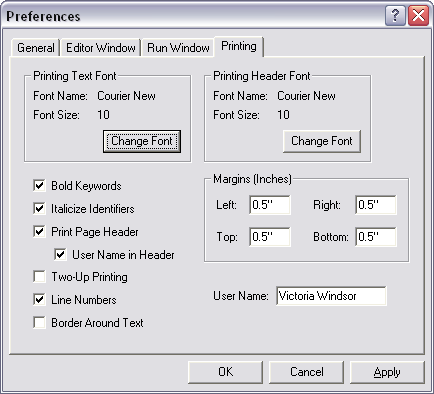
Turing printing preferences dialogue box
- Confirm your application’s printing preferences.
- For Turing, match the preferences shown in the screenshot above. Of course, you’ll provide your actual name.
- In the Print dialogue box, confirm the printer name provided by your teacher
- On the printer, check whether the data light is lit. If it is, press the Cancel Job button until the LCD display reads “NO JOB TO CANCEL.”
- Press the large Go button to put the printer online.
- Once your job has printed, press the Go button again to put the printer offline.
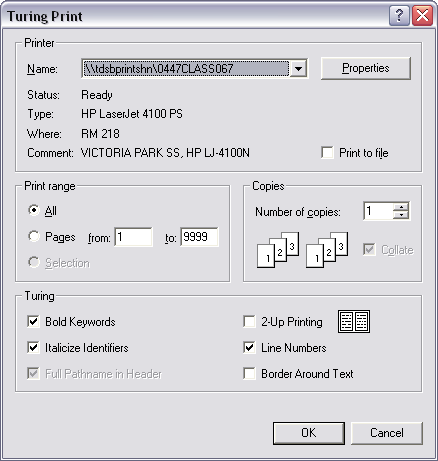
Turing print dialogue box
touque.ca > Education Commons > Turing
[This page last updated 2020-12-23 at 12h13 Toronto local time.]

© 2007–2025 Hersch, Bear & Company Limited. All rights reserved. “Grammar Authority,” “grammarauthority.com,” “touque.ca,” and “Canada’s Thinking Cap” are trademarks of Hersch, Bear & Company Limited. All other trademarks and copyrights are the property of their respective owners.
Privacy Policy | Licence to Copy | How to cite | Contact us